Exploring the Washington market
The Out-of-State account is for businesses without a Washington cannabis license — brands, farms, and distributors from other states who want to see the market, meet the players, and be ready on day one.
1.What this account is (and isn't)
With an Out-of-State account you can:
- Browse vendor catalogs — real products, prices, and potency across the market.
- Request vendor days — ask a store for an in-store introduction day.
- Book appointments — meetings with vendors and retailers.
- Message businesses you're building relationships with.
Why is there no cart? Washington law only allows licensed businesses to buy and sell cannabis. Without a WA license there is no purchasing on WeedUs — no cart, no orders, no deliveries. The moment you're licensed, section 5 shows how to upgrade and unlock everything.
2.Create your account
- 1Go to weedus.app/auth/register.
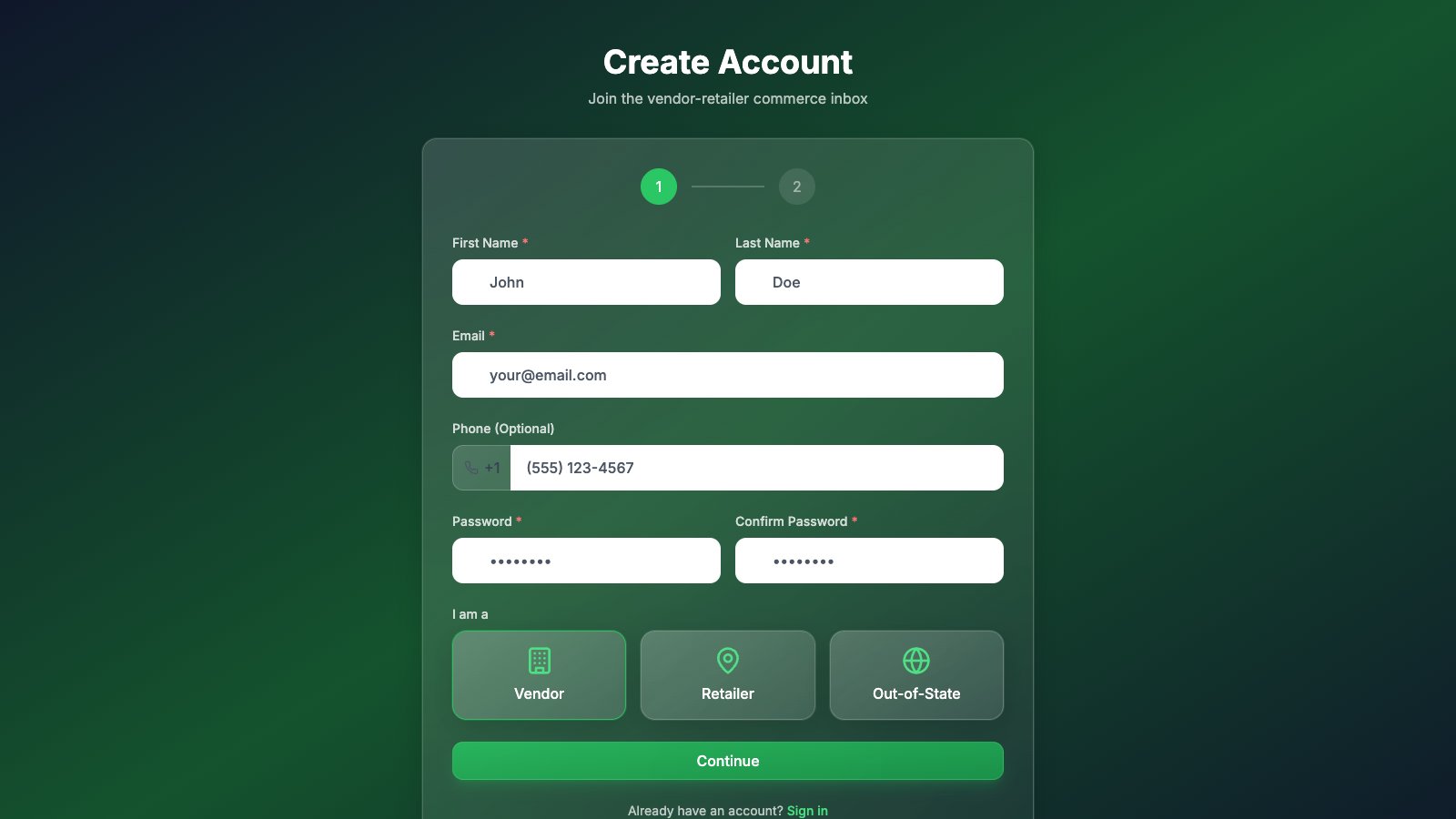
- 2Fill in your name, email, and a password, then choose the Out-of-State card.
- 3Press Continue and enter your business details. License number and state are optional — if you hold a license in another state, listing it helps stores know who they're talking to.
- 4Press Create Account and wait for approval — the WeedUs team reviews new accounts and you'll get an email when you're in.
3.Subscribe
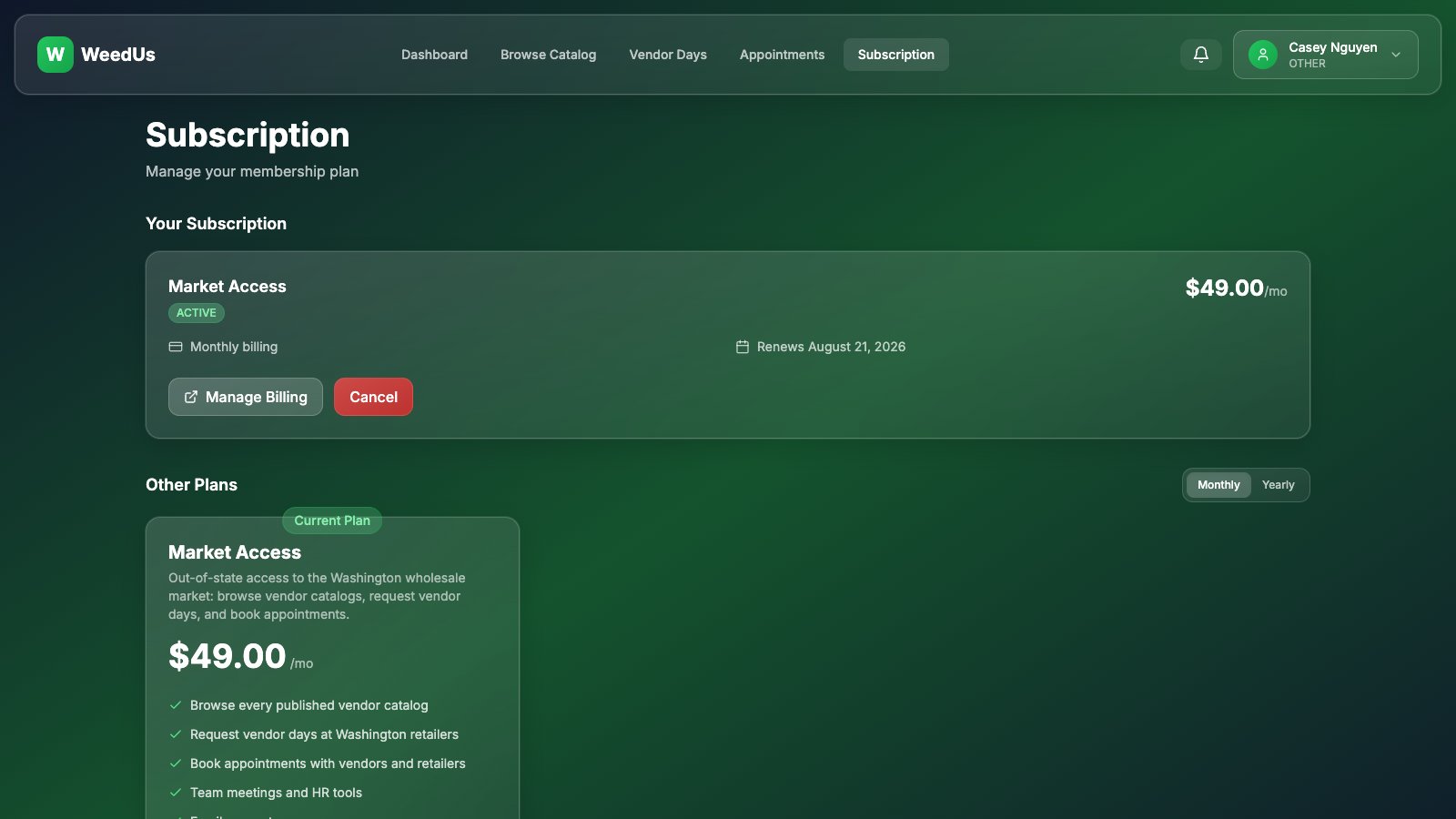
Out-of-State access is a single plan: Market Access at $49/month (no setup fee). It covers catalog browsing, vendor day requests, appointments, and team tools.
- 1Open the Subscription page from your profile menu.
- 2Press Subscribe on Market Access — checkout happens on a secure Stripe page; WeedUs never sees your card.
- 3Manage or cancel anytime from the same page (Manage Billing opens the Stripe portal for card changes and invoices).
WeedUs Analytics (analytics.weedus.app) also works with Out-of-State accounts — the Free tier is a great way to study the market before you commit.
4.Using WeedUs Commerce
Catalog browsing, vendor day requests, appointments, and messaging all live in the WeedUs Commerce app at commerce.weedus.app — sign in with the same WeedUs account. Your dashboard here links straight into each feature.
The Commerce app has its own in-app guides covering each feature step by step.
5.Got a Washington license?
The day your WA license comes through, you don't start over — your account upgrades in place, keeping your history, contacts, and conversations.
- 1On your dashboard, find the "Got a Washington license?" card.
- 2Choose your new role — Vendor (producer/processor) or Retailer — and enter your WA license number.
- 3Submit. A WeedUs admin verifies the license and approves the upgrade; your whole team switches to the new role automatically, and the full platform (cart, orders, deliveries…) unlocks.